2-panel_navigation.md
Contextual Menu and Advanced Navigation
Right-clicking on an object brings up a menu.
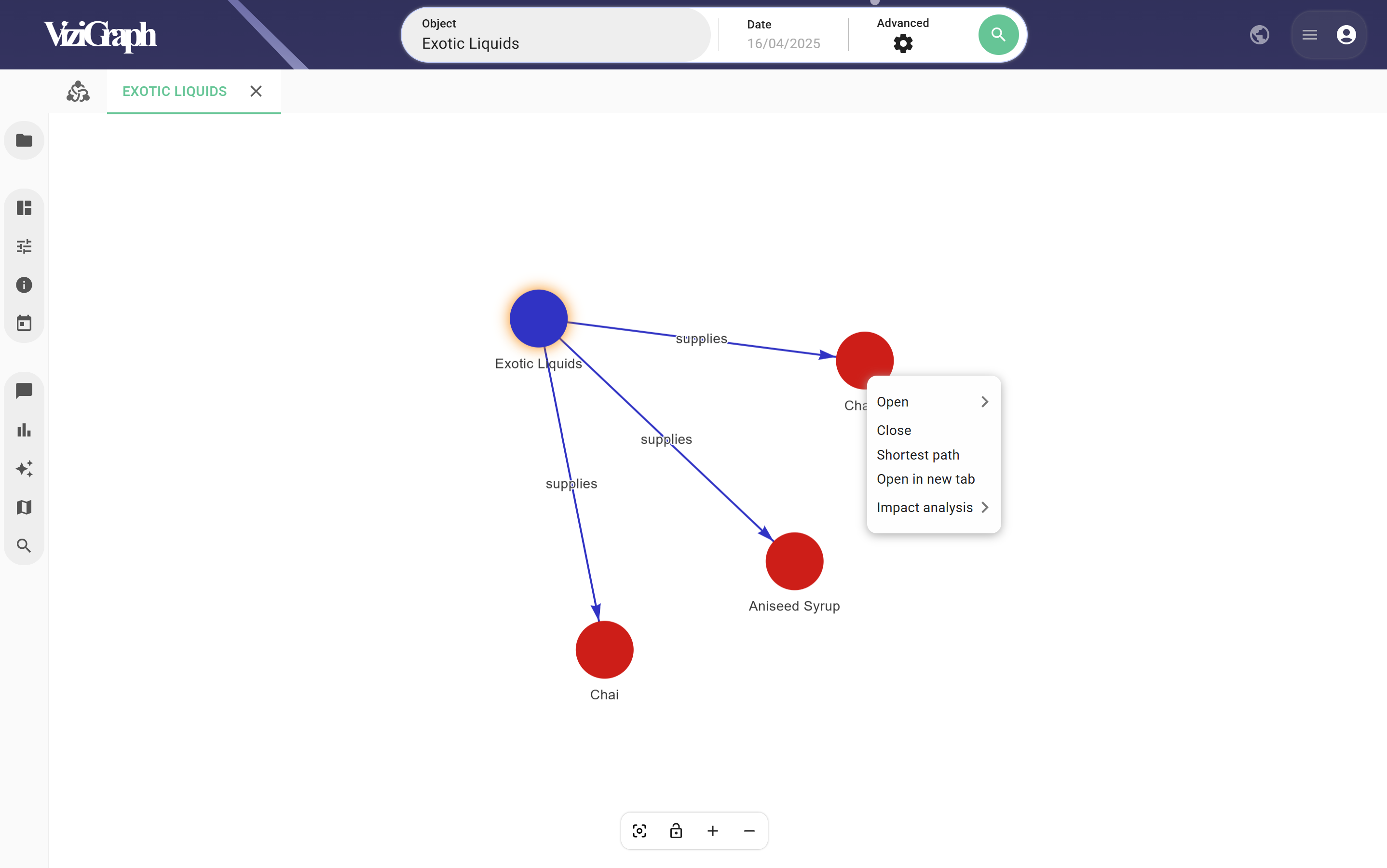
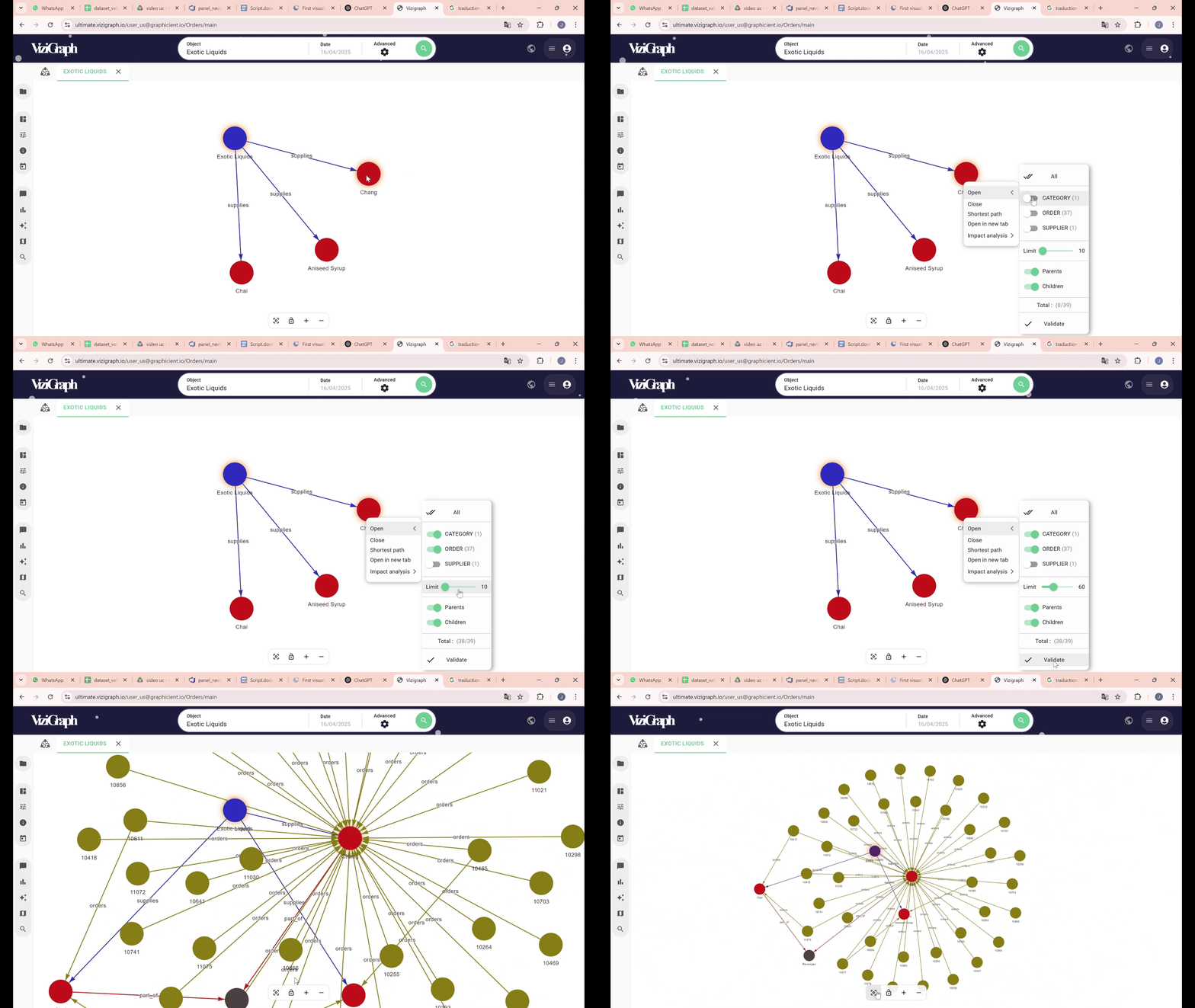
Extend Node
A different navigation method can be chosen by right-clicking on an object, allowing the selection of specific objects to open — either all, only parent objects, or only child objects.
After making a selection, click Validate to proceed.
By default, the number of neighboring objects opened is limited to 10, but this can be adjusted using the slider.
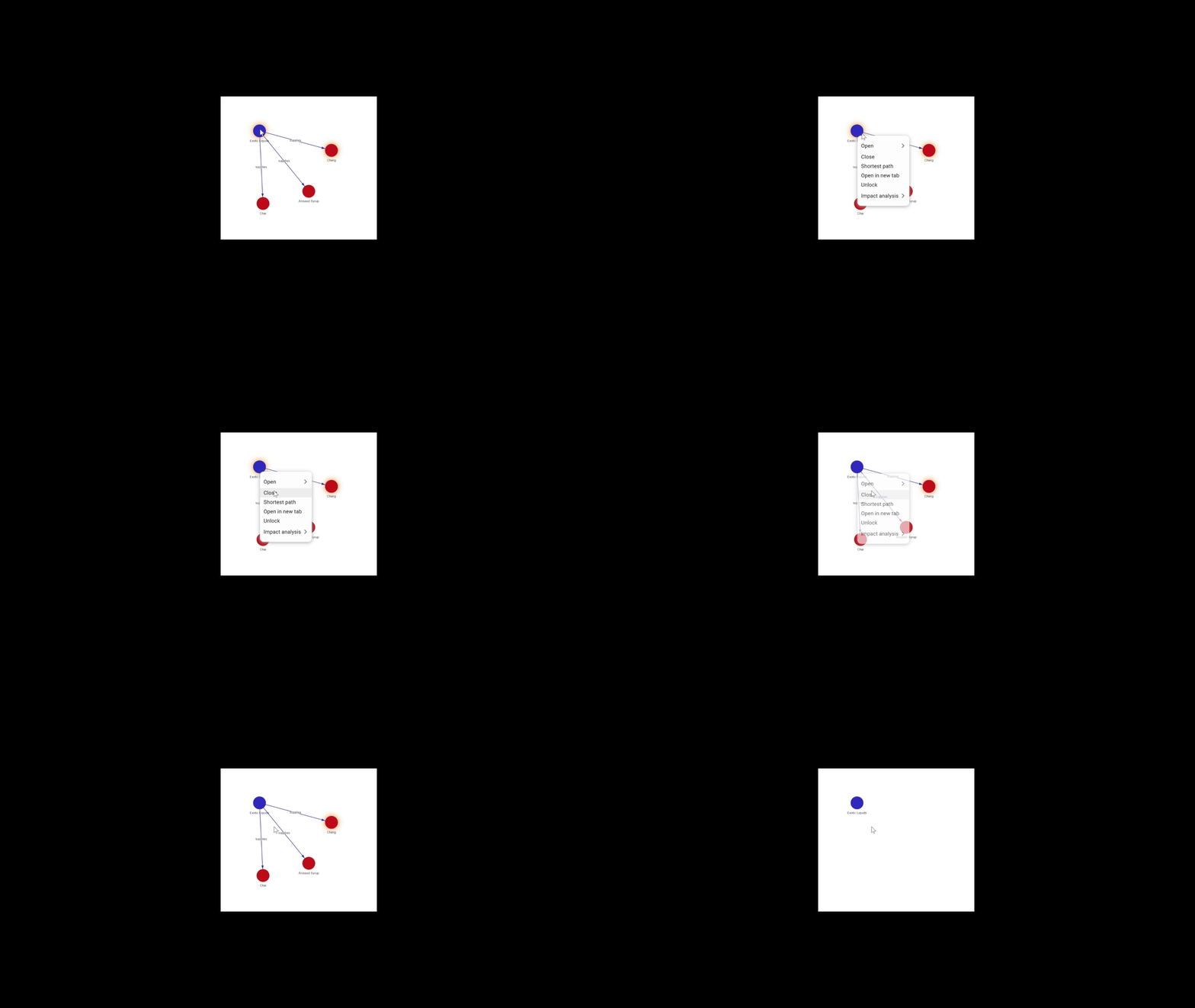
Open and Close Node
An object can also be closed.
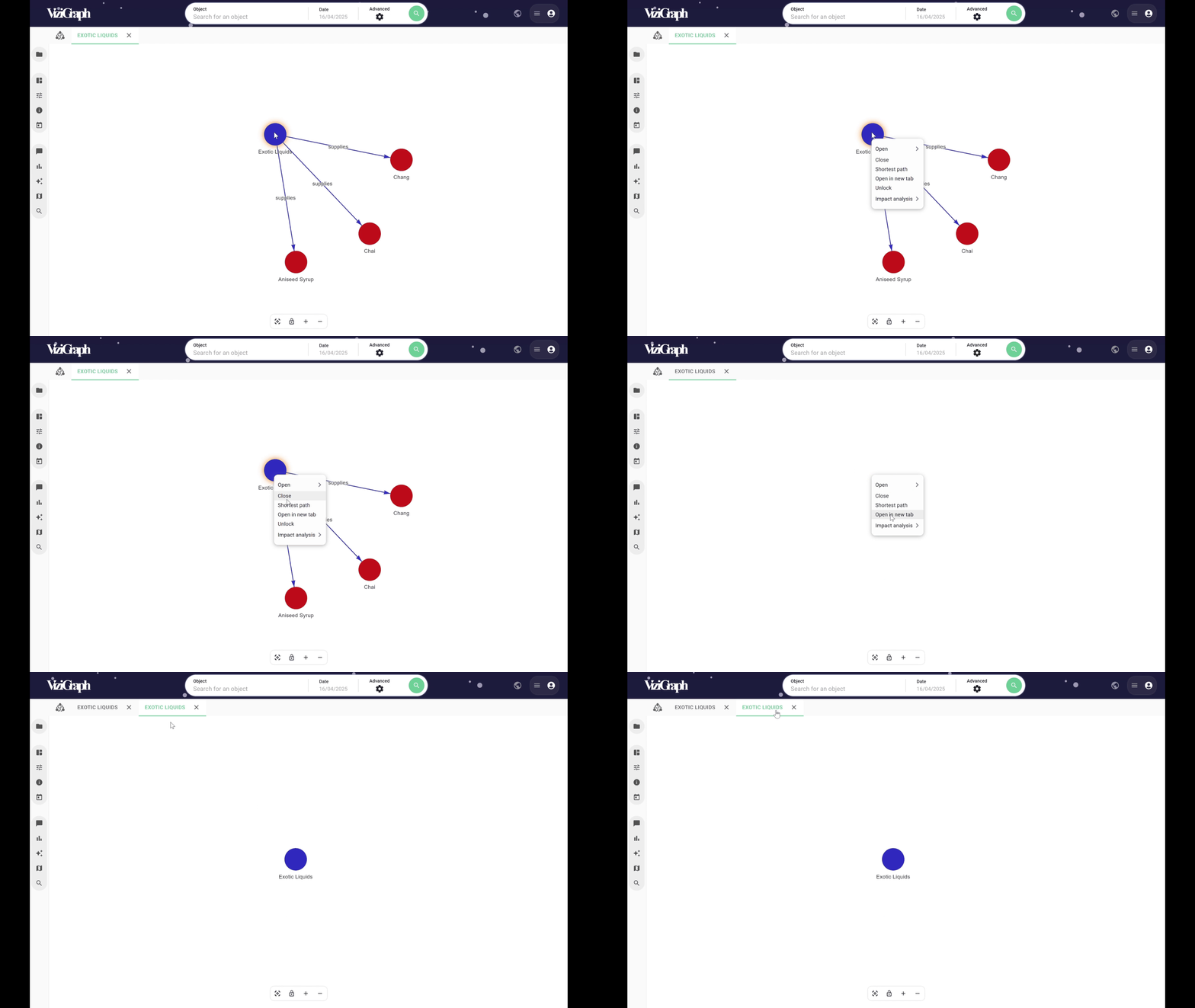
Or opened in a new tab if needed.
Impact Analysis
The Impact Analysis feature allows for a more direct exploration of the graph.
The depth of the analysis can be selected. For example, if the depth is set to 2, all neighboring objects up to two levels above and below will be retrieved.
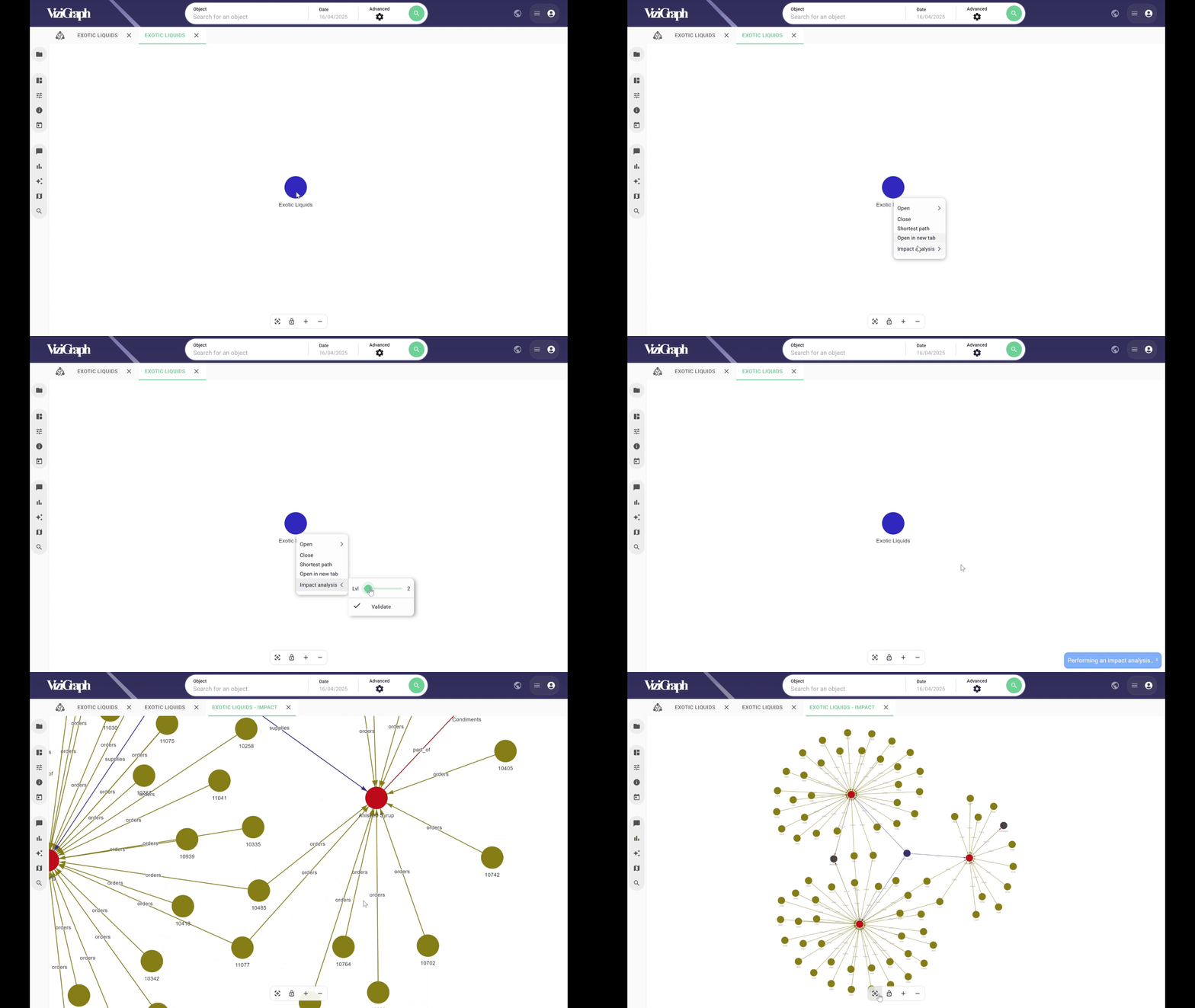
In certain contexts, impact analyses are predefined and developed using business rules, and therefore do not take depth level into account.
Shortest Path
The Shortest Path feature highlights the shortest path between two objects.
If the two selected objects are already connected in the graph, the algorithm identifies and displays the shortest existing path.
If the objects are not connected, the algorithm will add the shortest path to the graph.
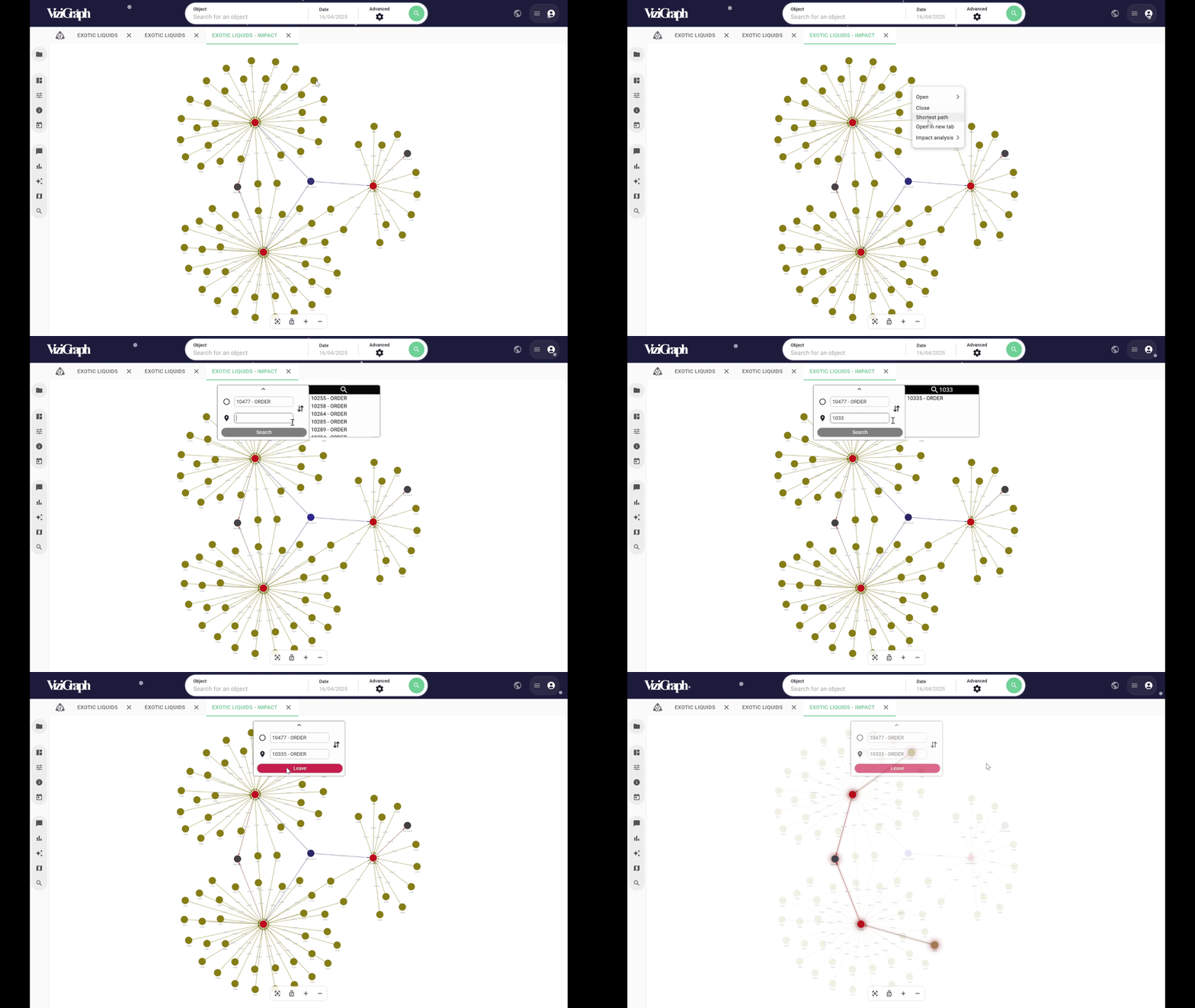
This powerful feature allows for the discovery and display of a concise, direct connection between two previously unlinked objects.